Email Templates & Notifications
Customize the emails your market sends and choose which notifications you receive as a manager.
Getting Started
As a market manager, you have two powerful tools for managing email communications: customizable email templates and flexible notification preferences. Here's how to find them:
- Head to your Admin Panel
- Look for the "Email Settings & Templates" section and click to expand it
- You'll see two tabs:
- Notification Preferences - Control which emails you receive copies of
- Email Templates - Customize the content of automated emails
Quick Tip: You can also jump straight to email settings from Market Settings - just click "Go to Email Settings" in the Email Configuration section.
Customizable Email Templates
Every automated email your market sends can include your own custom message. Here's what you can personalize:
Customer Emails
Welcome Email
Greet new customers when they first join your market
CustomizableOrder Confirmation
Add your own thank-you message to order confirmations
CustomizableOrder Cancellation
Include helpful information when orders are cancelled
CustomizableOrder Reminder
Remind customers about pickup day with your own message
CustomizableGrower Emails
Harvest Notification
Thank growers and provide any harvest-day details after orders close
CustomizableGrower Application Received
Tell grower applicants what your review process looks like — your timeline, a link to your own application form, or whatever comes next at your market
CustomizableEditing Templates
Making Changes
- Switch to the Email Templates tab
- Click on any template to expand the editor
- Write or edit your message using the text editor
- Click "Save Templates" when you're done
- Changed your mind? Hit "Discard Changes" to start over
Adding Style with Markdown
You can use simple markdown formatting to make your messages more readable:
- Make text bold or italic
- Create bulleted or numbered lists
- Add clickable links
- Break up text for easier scanning
Don't worry if you're new to markdown - plain text works great too! The editor shows you a preview of how your message will look.
Good to Know
- Order-related messages get added to the standard email - they don't replace the important details like order information
- The Welcome and Grower Application Received templates replace the generic middle section of their emails with your message - the greeting and confirmation details stay put. Leave a template blank to use the standard wording.
- System details (orders, amounts, pickup times) are automatically included
- Want to see it in action? Place a test order or create a test account to preview your emails
Special Features: Reminder Emails
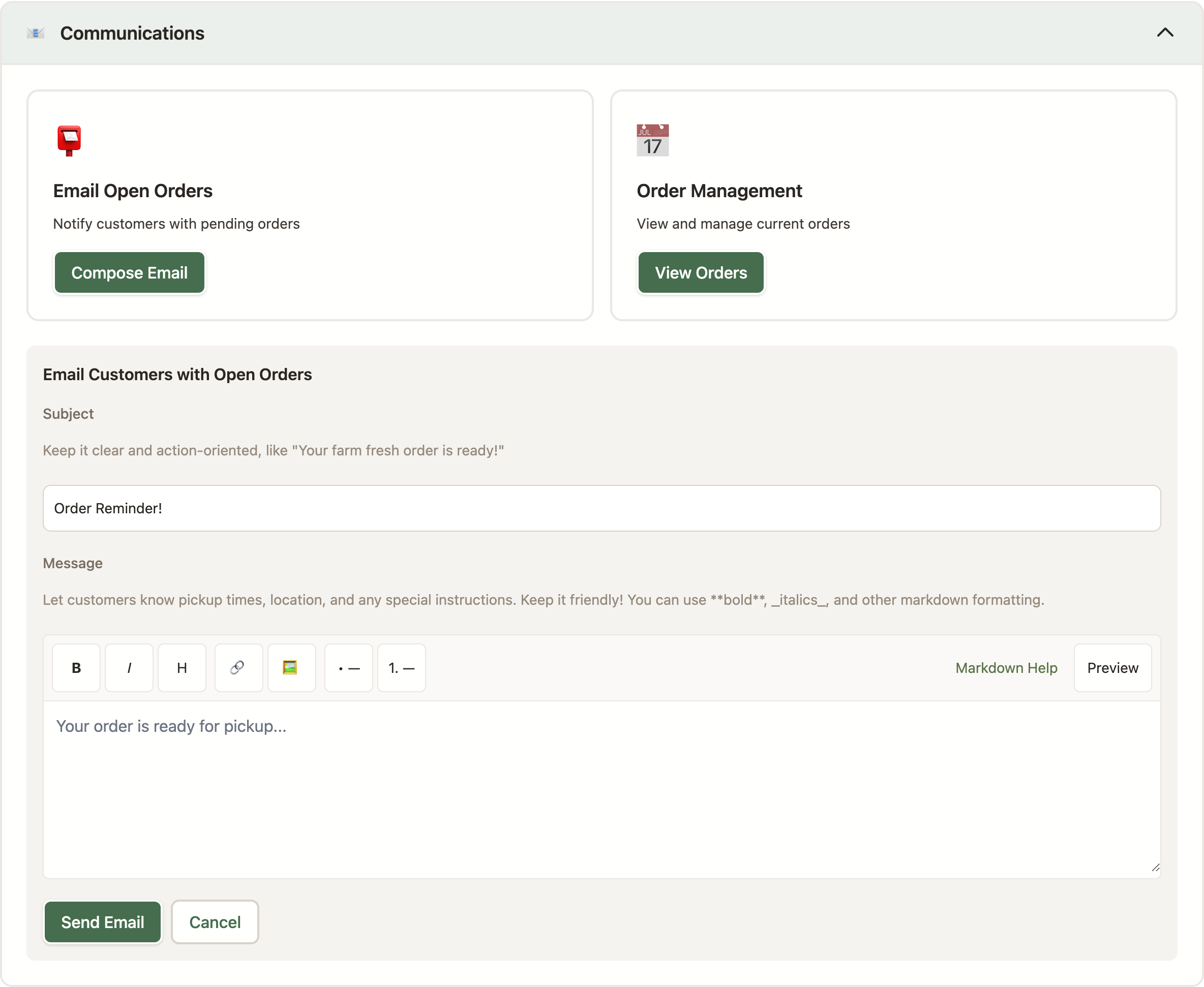
Order reminders get a little extra love - you can customize both the subject line and the message:
- Subject Line: Make it your own (defaults to "Order Reminder!" if you leave it blank)
- Message Body: Add all the pickup details customers need to know
This is a great place to include parking instructions, what to bring, special pickup hours, or any last-minute updates.
Managing Your Email Notifications
As your market grows, you might find your inbox getting a bit crowded. The good news? You have complete control over which email notifications you receive as a manager. Stay informed about what matters most without drowning in messages.
How to Adjust Your Preferences
- Head to Admin Panel > Email Settings & Templates
- You'll start on the "Notification Preferences" tab
- Simply toggle any notification type on or off
- Your changes save automatically - no button to click!
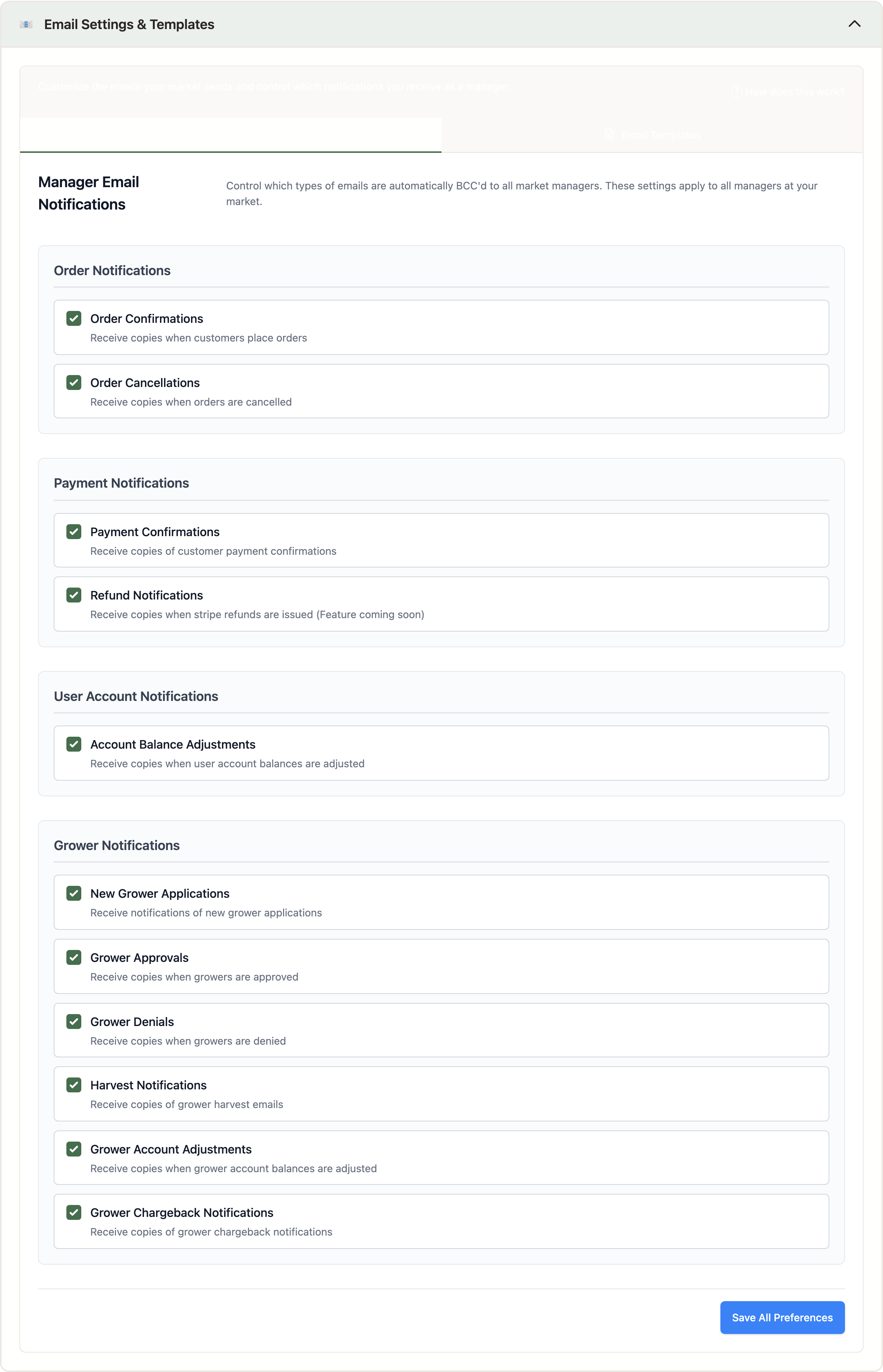
What You Can Get Notified About
Here's what you can stay on top of:
Order Notifications
- Order Confirmations: Get a copy when customers place orders
- Order Cancellations: Stay in the loop when orders are cancelled
Payment Notifications
- Payment Confirmations: See when customers pay for orders
- Refund Notifications: Know when Stripe refunds are issued
User Account Notifications
- Account Balance Adjustments: Get notified when customer account balances change
Grower Notifications
- New Grower Applications: Be first to know when vendors apply
- Grower Approvals: See when new growers join your market
- Grower Denials: Track declined applications
- Harvest Notifications: Get copies of harvest emails sent to growers
- Grower Account Adjustments: Monitor grower account balance changes
- Grower Chargeback Notifications: Stay informed about chargebacks
Behind the Scenes
When you enable a notification type, all market managers automatically get BCC'd on those emails. That means you get a copy without customers or growers seeing your email address in the recipient list. The best part? Each toggle saves automatically as soon as you click it - no need to hunt for a save button. (You'll see a "Save All Preferences" button too, but that's just a backup option if you want to save multiple changes at once.)
Who Receives These Emails
The toggles above decide which kinds of emails go out. Below them, under "Who receives these emails", you'll find a list of your market's managers with a switch next to each one. Switch someone off and they'll stop getting copies of all of these notifications, while every other manager keeps getting theirs.
This comes in handy when someone needs the manager role for the access it gives (looking up customer addresses for deliveries, say) but doesn't want the steady stream of order and payment emails. Managers who are switched off keep full admin access; they just aren't copied on the market's notification emails. Any manager can flip the switch for any other manager, including themselves, and the change takes effect within a few minutes.
Setting Up Your Market Email Address
Your market needs an email address - both for sending out confirmations and for receiving messages from customers. You've got two options, and you can configure them in Market Settings > Email Configuration:
- Hosted Email: Use a professional [email protected] address - no setup needed
- Custom Forwarding: Have emails sent to your existing email address instead
Whichever you choose, all your outgoing emails (order confirmations, newsletters, reminders) will come from this address, so customers know exactly who's reaching out.
Tips for Success
Writing Great Email Templates
- Keep it friendly and brief - people scan emails quickly
- Add the practical stuff - pickup times, parking, what to bring
- Say thanks - customers and growers love feeling appreciated
- Include a contact - let folks know how to reach you with questions
Smart Ways to Use Notifications
- Busy season? Turn on order confirmations to keep tabs on volume
- Growing your vendor base? Keep grower applications enabled so you can respond quickly
- Inbox overload? Turn off routine notifications and keep the important ones
- Regular check-ins - review your settings every few months as your market evolves
Try Before You Fly
- Test orders - place one yourself to see how confirmation emails look
- Test accounts - create a sample user to preview welcome messages
- Test reminders - send one to yourself before the big pickup day
When Things Go Sideways
My Template Changes Won't Save
- Double-check you clicked "Save Templates" (easy to miss!)
- Look for any error messages on the screen
- Seeing "Your session has expired"? Your login timed out - it happens with long-open tabs. Sign back in (a new tab works well, so your edits stay put), then click "Save Templates" again
- Try refreshing the page and making your edits again
- Still stuck? Reach out to support - we're here to help
Emails Aren't Showing Up
- First stop: check spam and junk folders (happens to the best of us)
- Confirm the email address in your profile is correct
- For manager notifications, make sure that notification type is turned on
- If nothing's working, contact LocallyGrown support
I'm Not Getting Manager Copies
- Pop over to Notification Preferences and make sure that type is enabled
- Confirm you're actually listed as a market manager
- Check your spam folder - sometimes they hide there
- Remember, notification preferences save automatically when you toggle them